Select Language

Please choose your preferred language / Lütfen dil seçimi yapınız

Türkçe Türkçe
English English
Русский Русский
Deutsch Deutsch
Español Español
Français Français
العربية العربية
Azərbaycan Azərbaycan
Italiano Italiano

How to Use?

Select your platform and follow the steps to start playing your game right away.

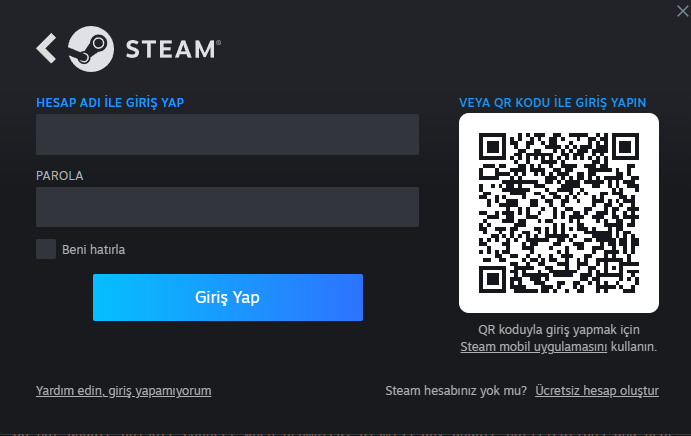
Log In with Your Credentials
Step 1

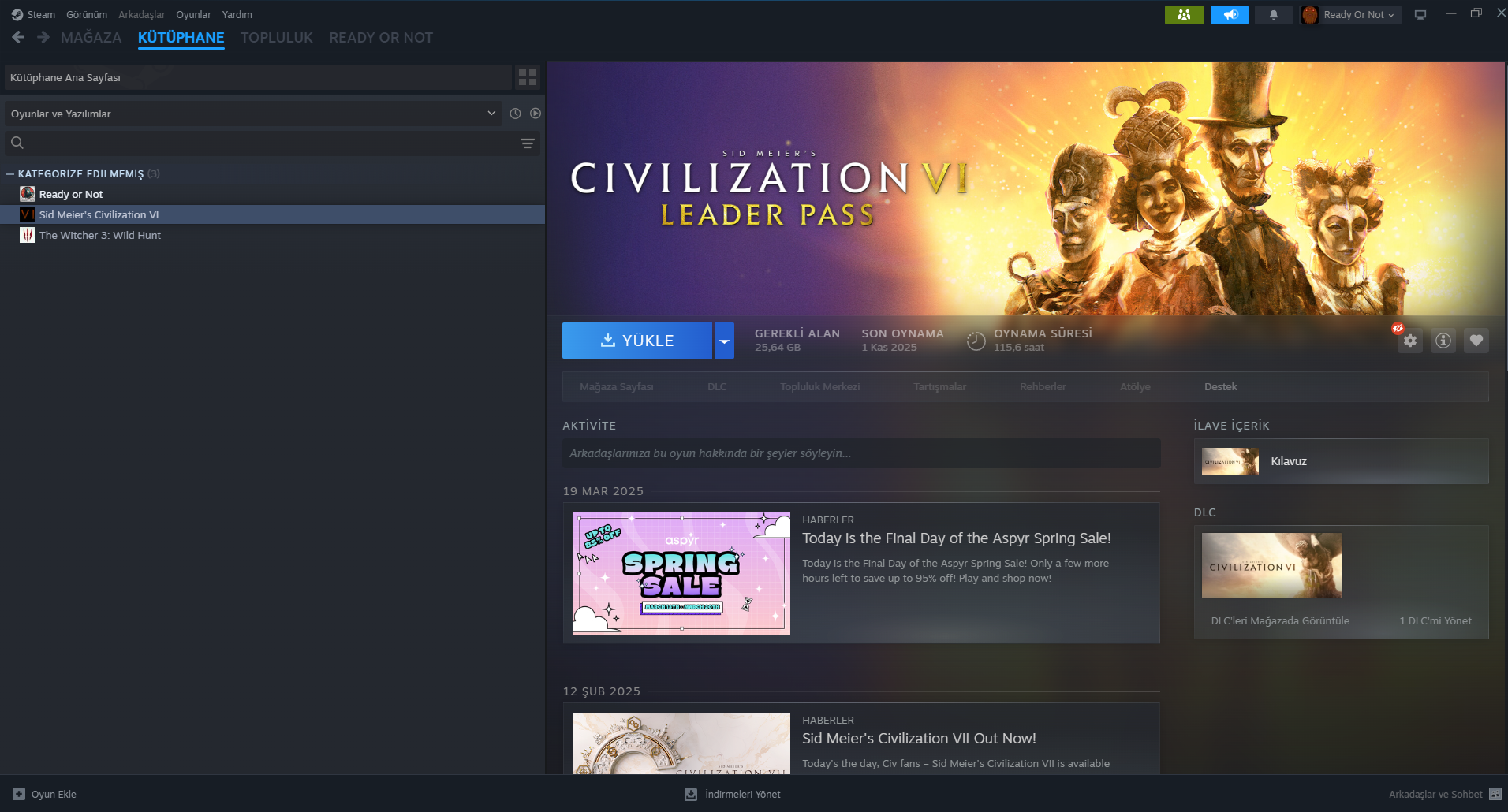
Go to Library

Step 2
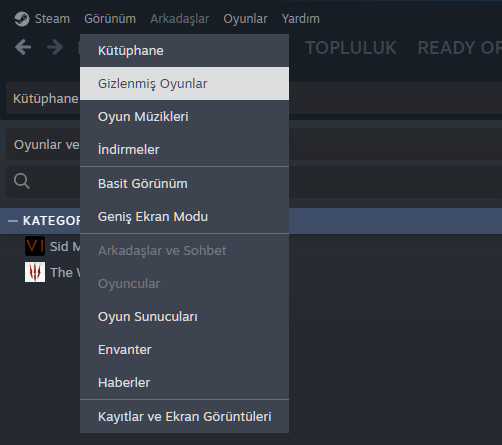
Can't See Your Game?

Hidden Games Menu
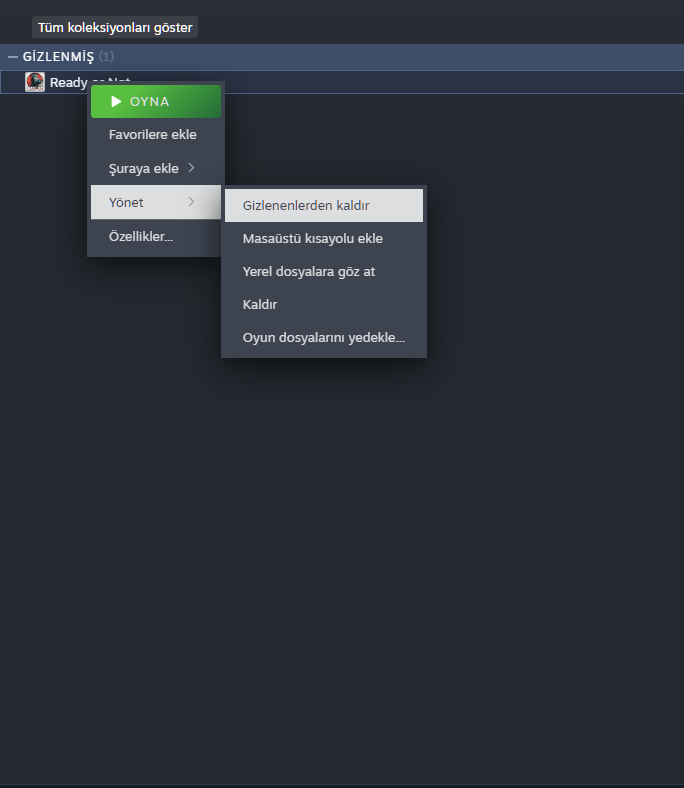
Remove from Hidden

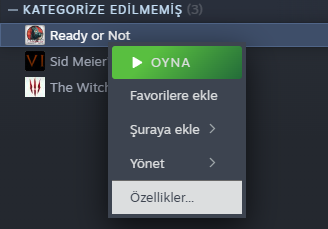
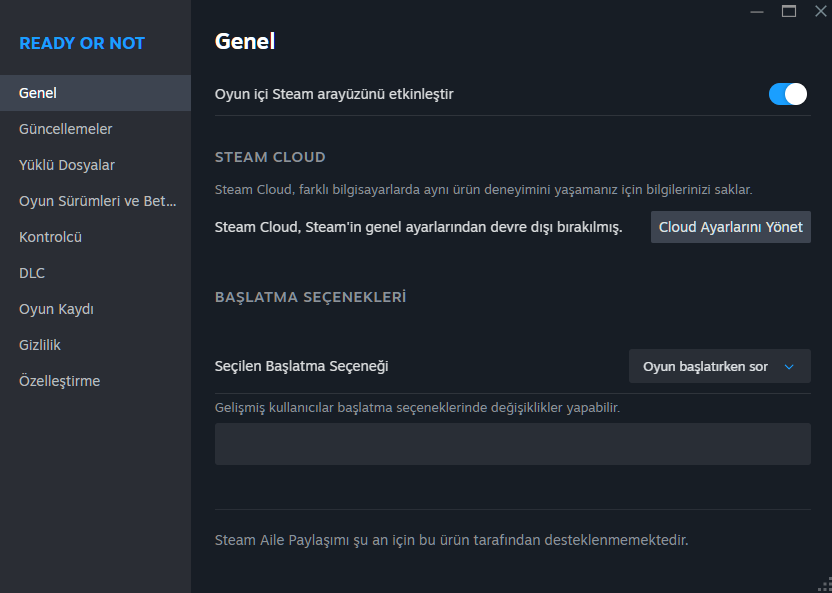
Open Game Properties

Step 3

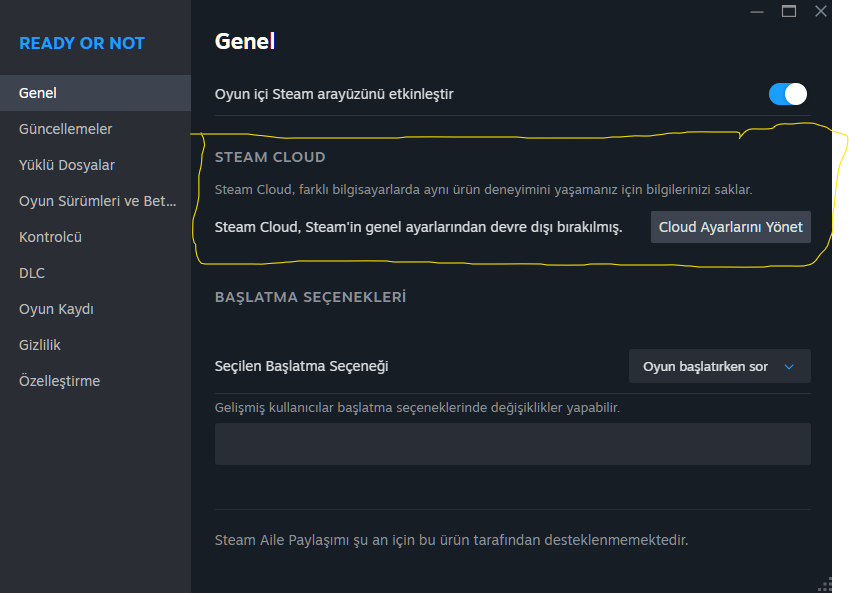
Disable Cloud Backup

Step 4

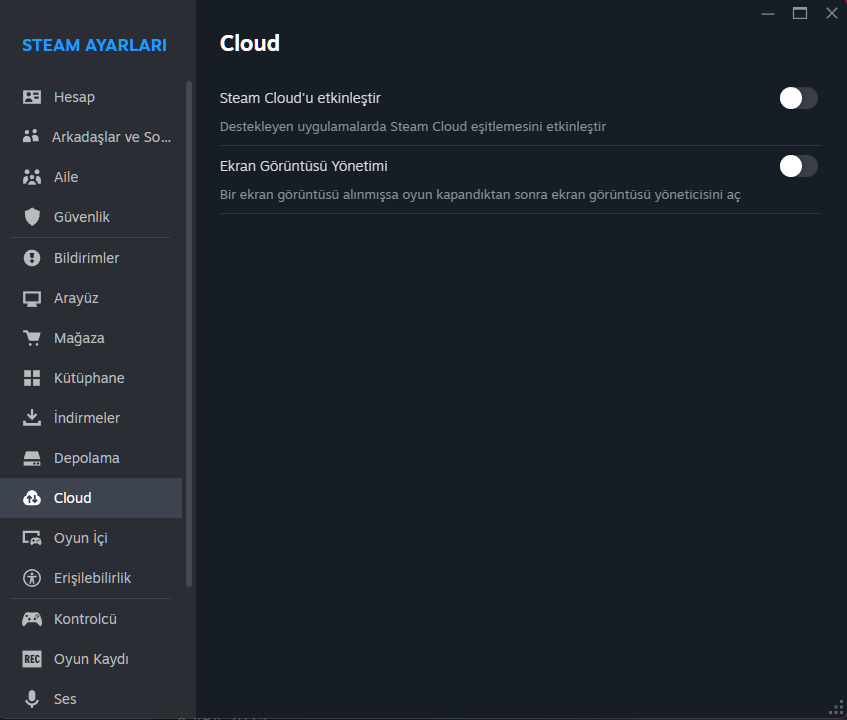
Manage Cloud Settings

Step 5

Verify Cloud is Disabled

Step 6

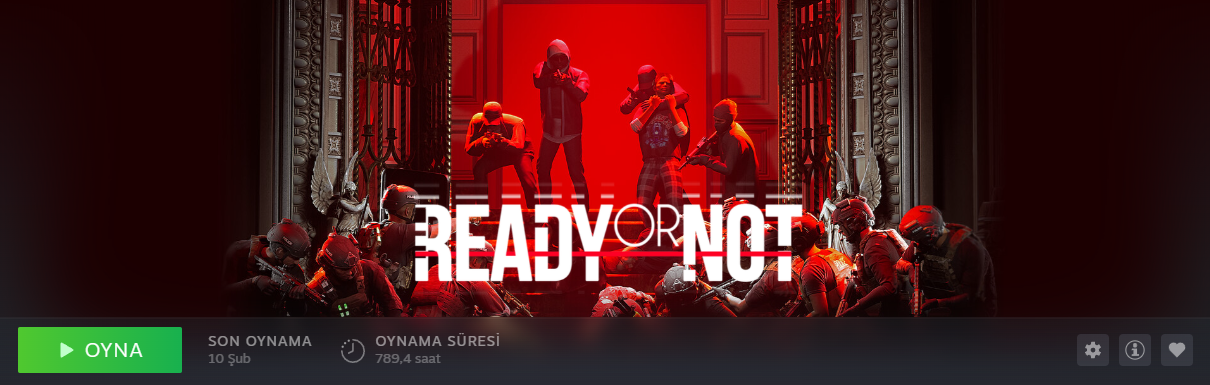
Check Cloud Badge

Step 7

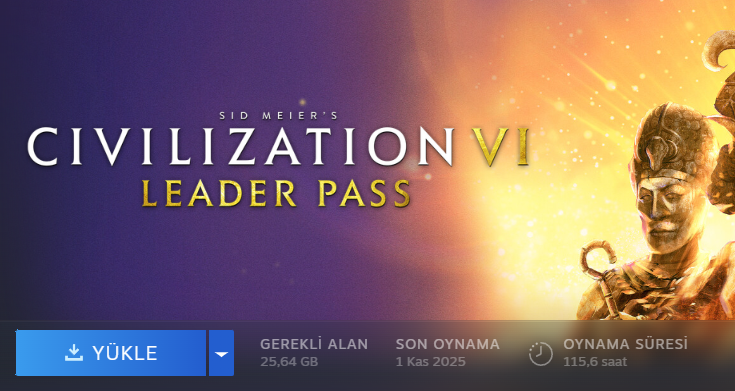
Install the Game

Step 8

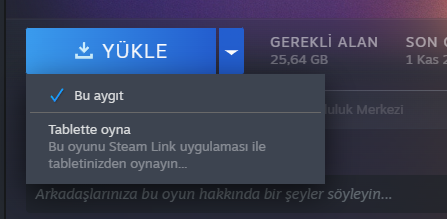
Select Your Device

Step 9

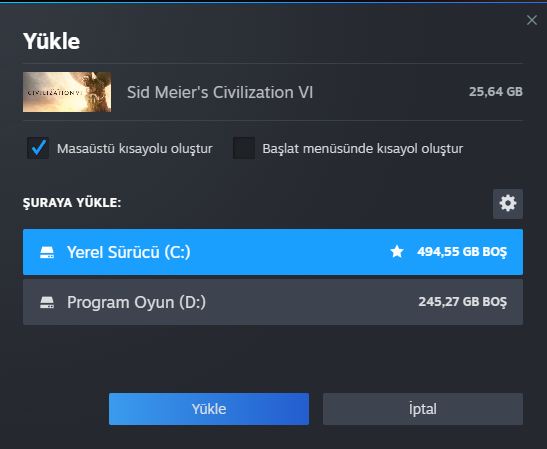
Choose Installation Disk

Step 10

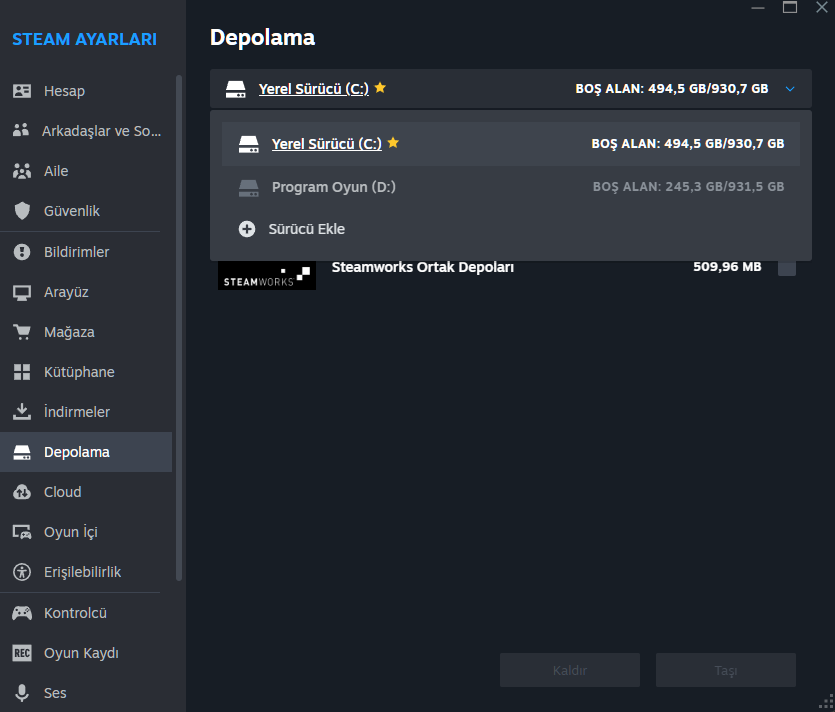
Add Storage (If Needed)

Step 11

Launch Online Once

Step 12

Close Steam Completely

Step 13

Disconnect Internet

Step 14

Advanced Network Settings

Step 15

Disable Network Adapters

Step 16

Open Steam Without Internet

Step 17

Go Offline

Step 18

Play Your Game! 🎮

Step 19

You Can Re-Enable Internet

Step 20

Play Button Not Showing?

Step 21

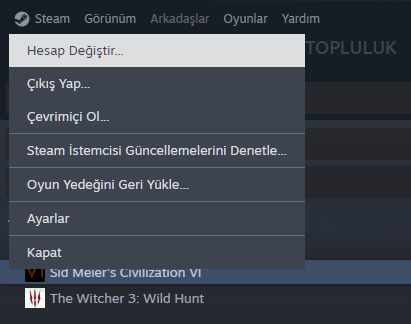
Switch Account

Step 22
Steam + Ubisoft

First Launch – Online Login

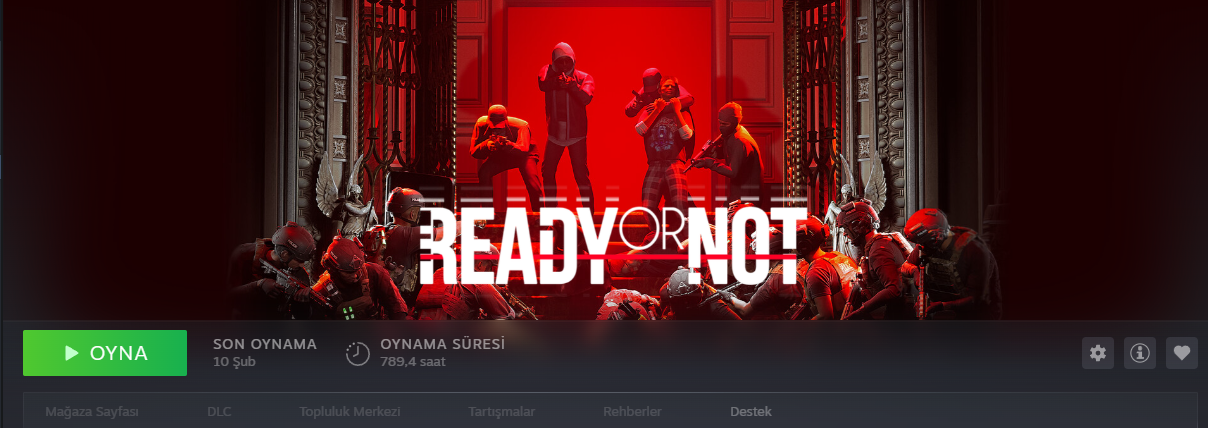
Open the game from Steam with internet connected.

This first online launch is required only once.
Ubisoft Connect

Open Ubisoft Connect

Open the Ubisoft Connect application. Do not log in yet!

If you log in while online, Ubisoft Guard will ask for a verification code.

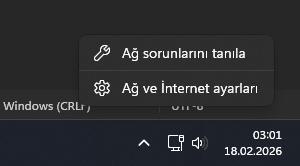
Disconnect Internet – Right-Click Network Icon

Right-click the network icon in the taskbar.

Network right-click menu

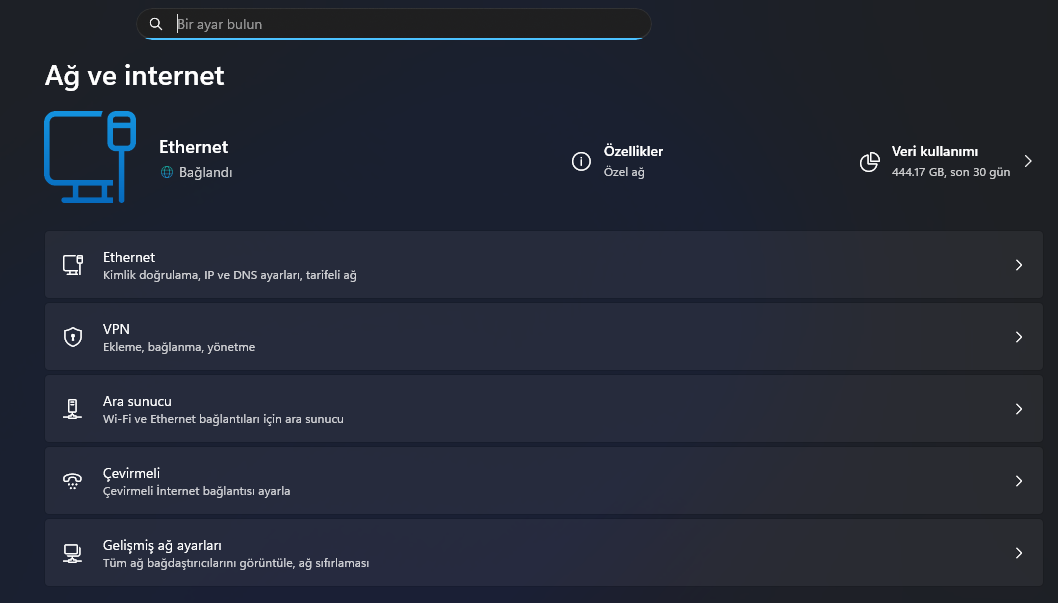
Open Advanced Network Settings

Click "Advanced network settings" at the bottom.

Network and Internet settings page

Disable Network Adapters

Disable your Ethernet or Wi-Fi adapter.

Disable network adapter button
If you are using Wi-Fi, you can simply turn off your Wi-Fi instead.
Ubisoft Connect

Log In to Ubisoft (Offline)

Log in to Ubisoft Connect while offline.
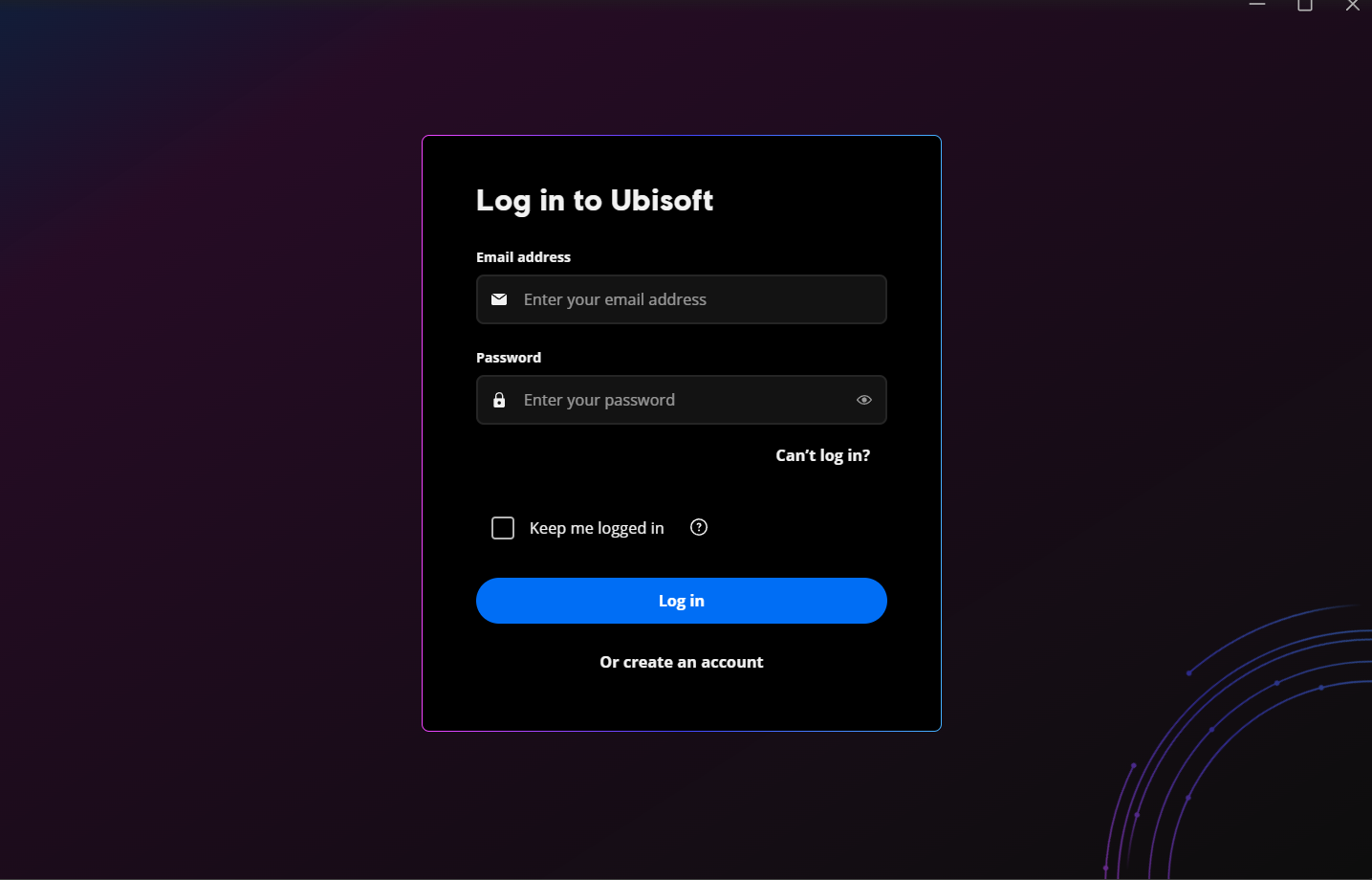
Ubisoft Connect login screen
You will see "Client is offline" — this is expected.
Ubisoft Connect

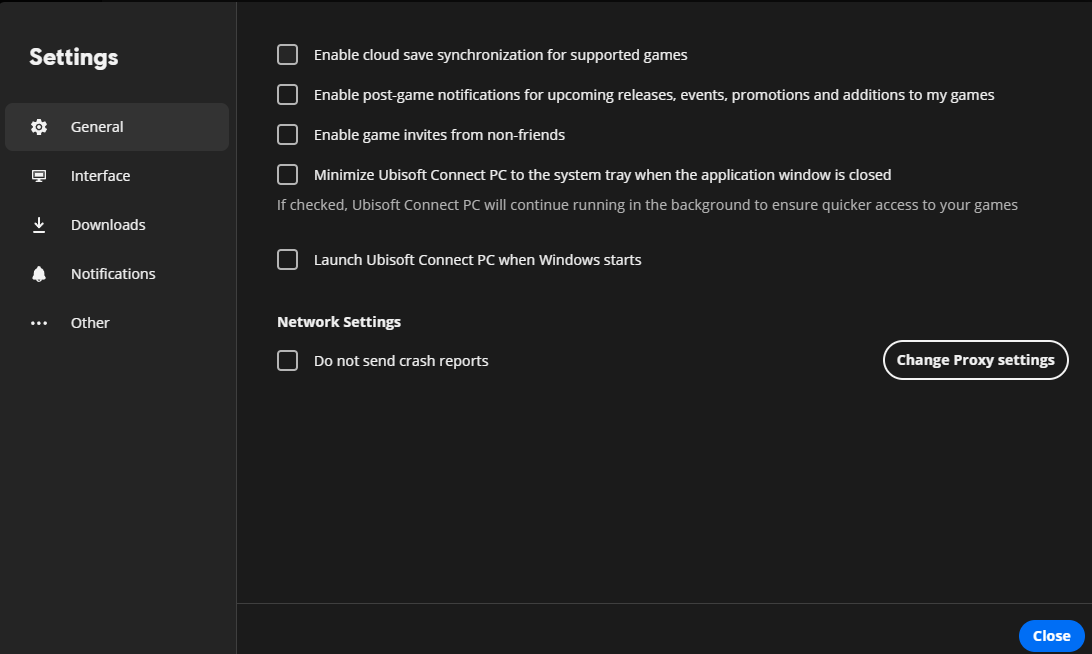
Disable Cloud Save Synchronization

Disable cloud save sync in Ubisoft settings.
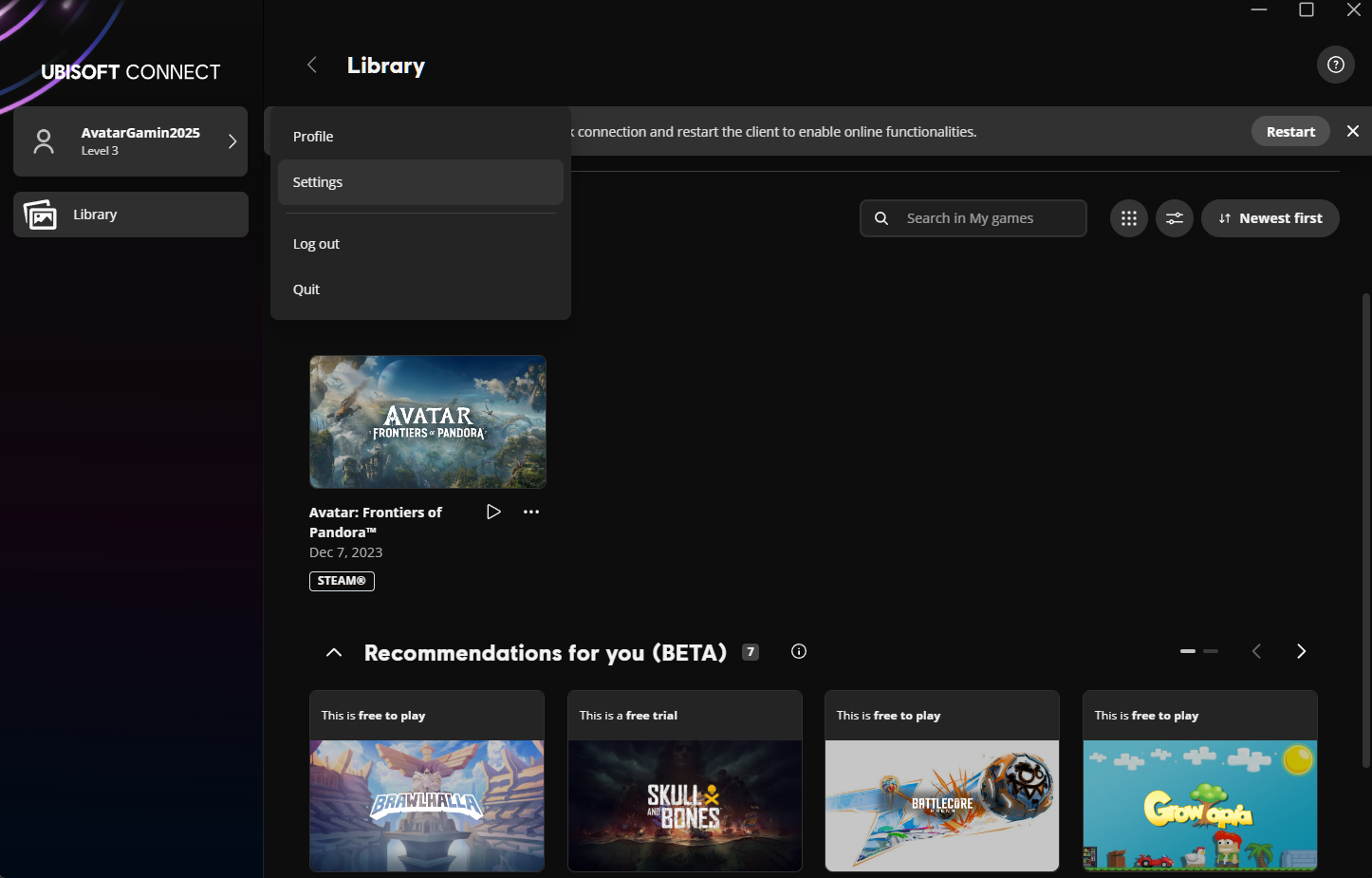
Ubisoft settings menu
Cloud sync disabled in Ubisoft settings
If cloud sync is left on, save data conflicts may occur.
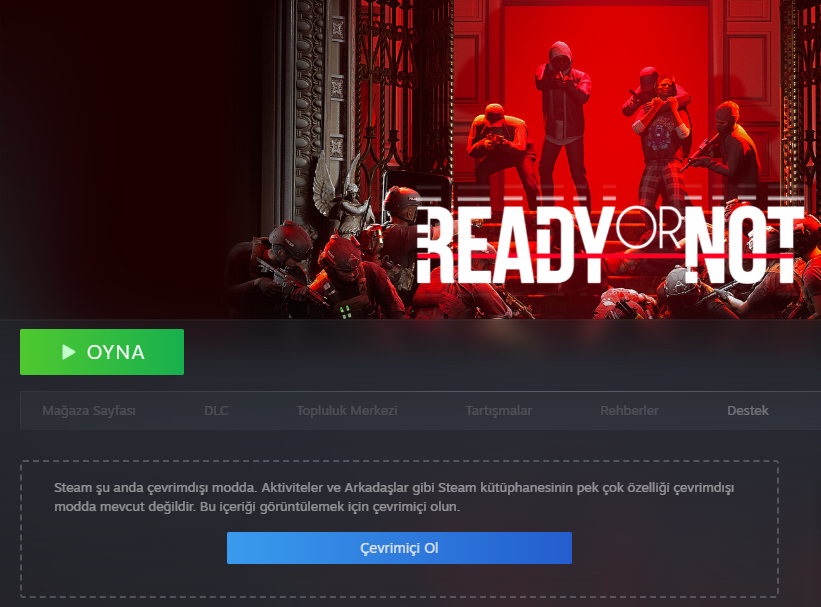
Steam

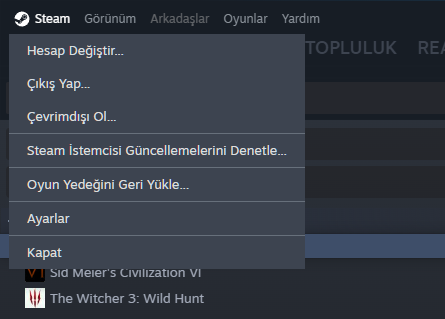
Open Steam in Offline Mode

Open Steam and switch to Offline Mode.

Ubisoft Connect must remain open in the background.
Steam

Launch the Game

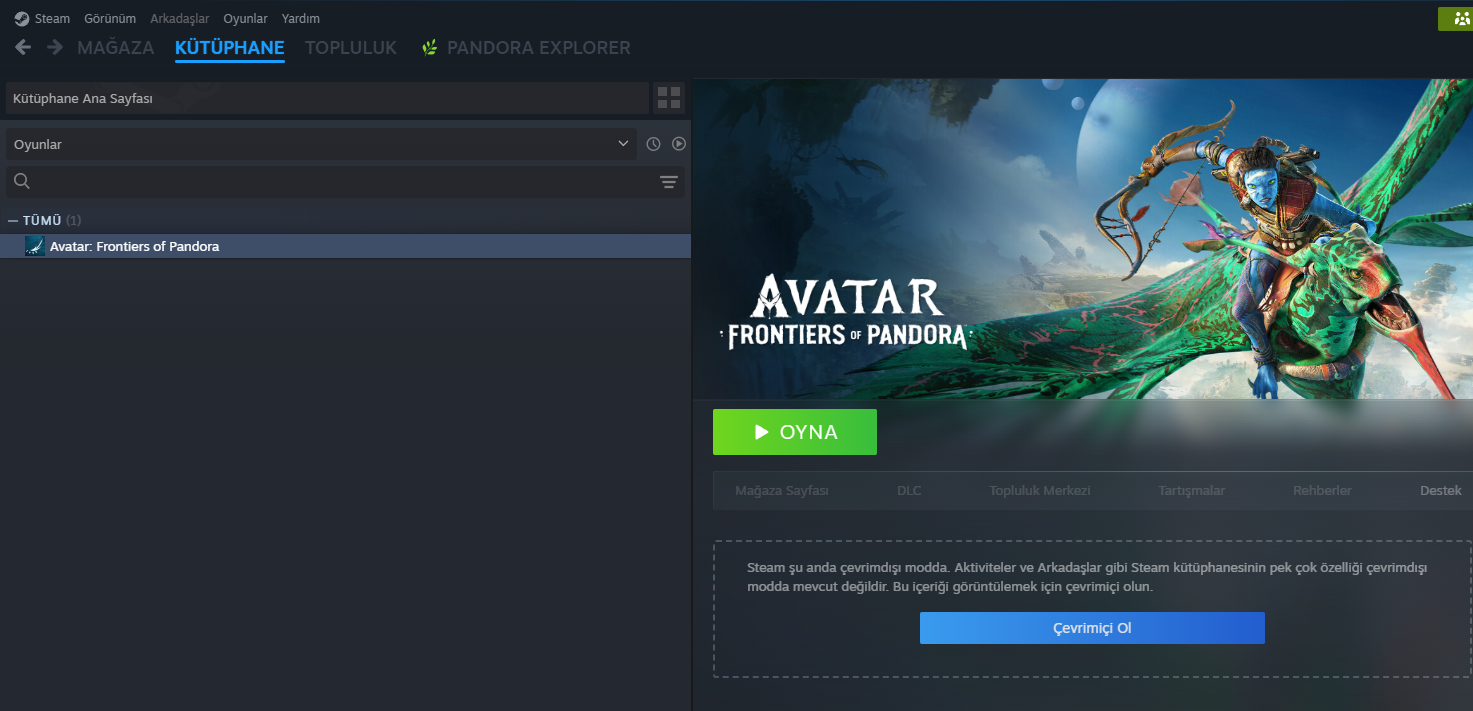
Click Play in Steam Library.

Steam library play button
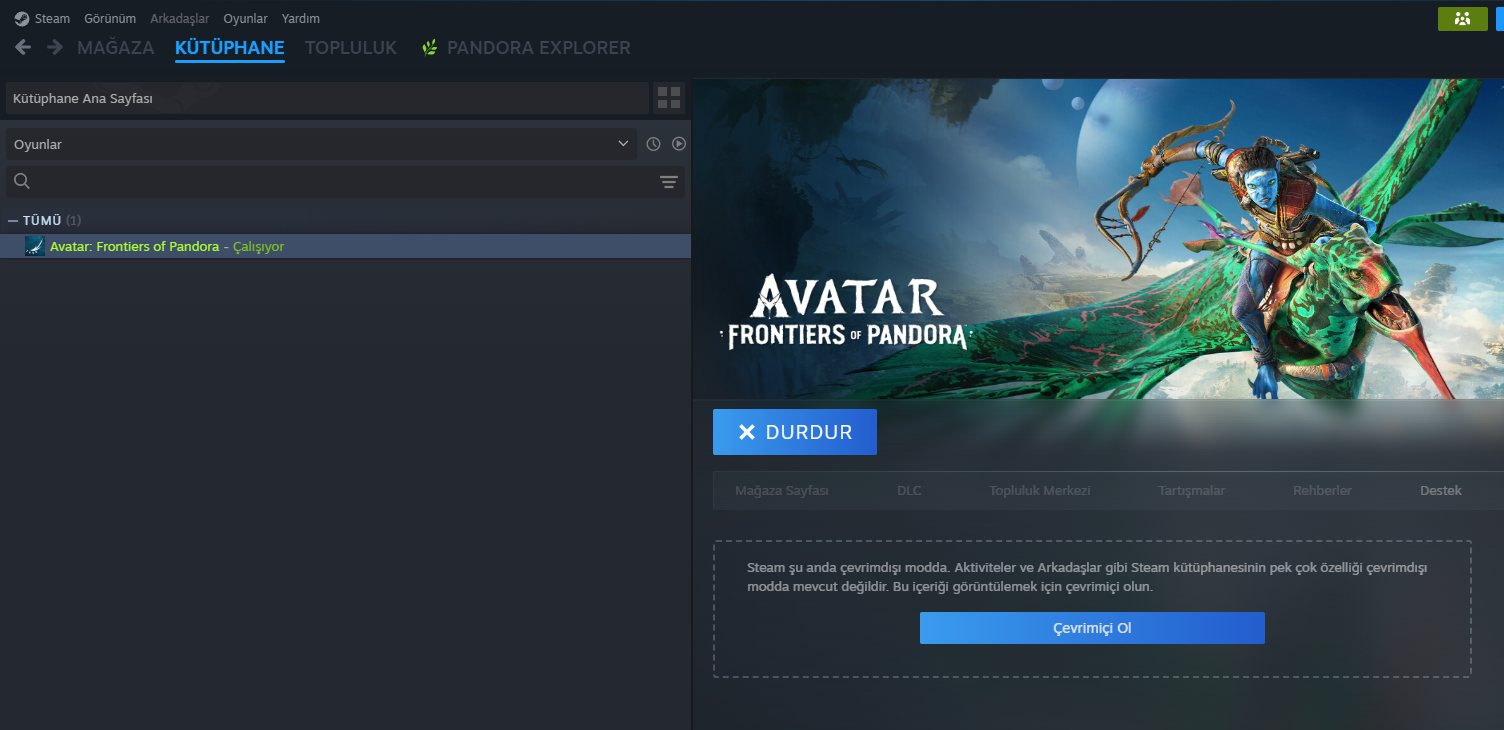
Game running in Steam
Ubisoft Connect

Verify Ubisoft Is Still Offline

Check that Ubisoft shows "Client is offline" and game is Running.
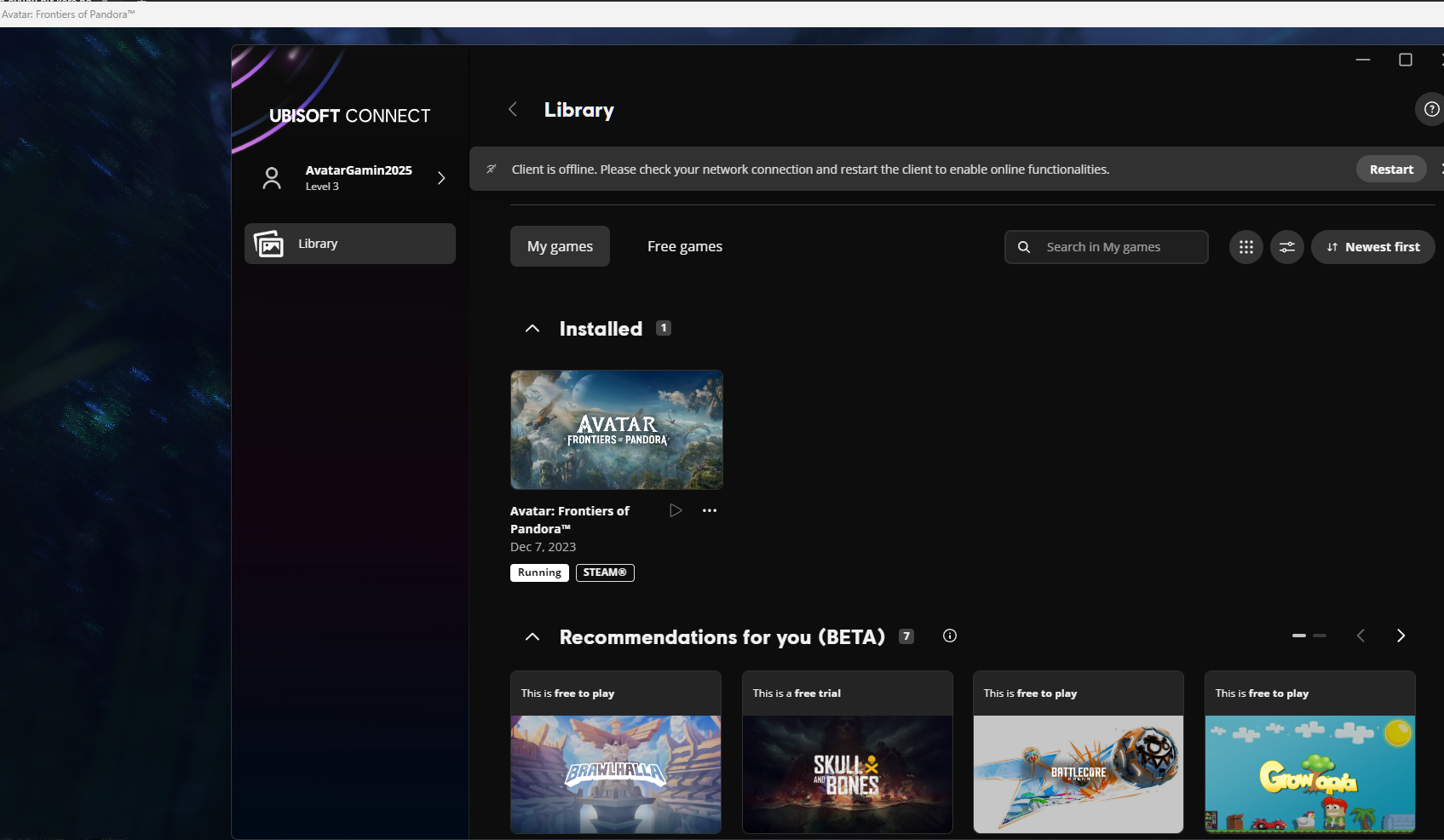
Ubisoft Connect showing offline status with game running

⚠️ Important Warning

Do not switch Ubisoft accounts until you have finished playing.

Download and Install Steam

Download and install Steam.

Skip if already installed.
Rockstar Launcher

Install Rockstar Games Launcher

Download and install Rockstar Games Launcher.

Install before disconnecting from the internet.

Disconnect from the Internet

Turn off your internet connection.

Don't open Steam with internet on.

Log In with Your Account Credentials

Enter the credentials provided to you.

UsernameSent via email
PasswordSent via email
Rockstar Launcher

Launch via Steam

Start the game from Steam Library. Rockstar Launcher will open automatically.

Do not update the Rockstar Launcher when prompted.

Enjoy! 🎮

Have fun playing your game!

Download and Install Steam

Download and install Steam.

Skip if already installed.
EA Play

Install EA App

Download and install the EA App.

Install before disconnecting from the internet.

Disconnect from the Internet

Turn off your internet connection.

Don't open Steam with internet on.

Log In with Your Account Credentials

Enter the credentials provided to you.

UsernameSent via email
PasswordSent via email
EA Play

Launch via Steam

Start the game from Steam Library. EA App will open automatically.

Do not update the EA App when prompted.

Enjoy! 🎮

Have fun playing your game!